
How to Add Your Virtual Card to Apple Pay / Google Pay
Step-by-step guide to adding your YangaPlug virtual card to Apple Pay or Google Pay, plus troubleshooting tips if it doesn't work right away.
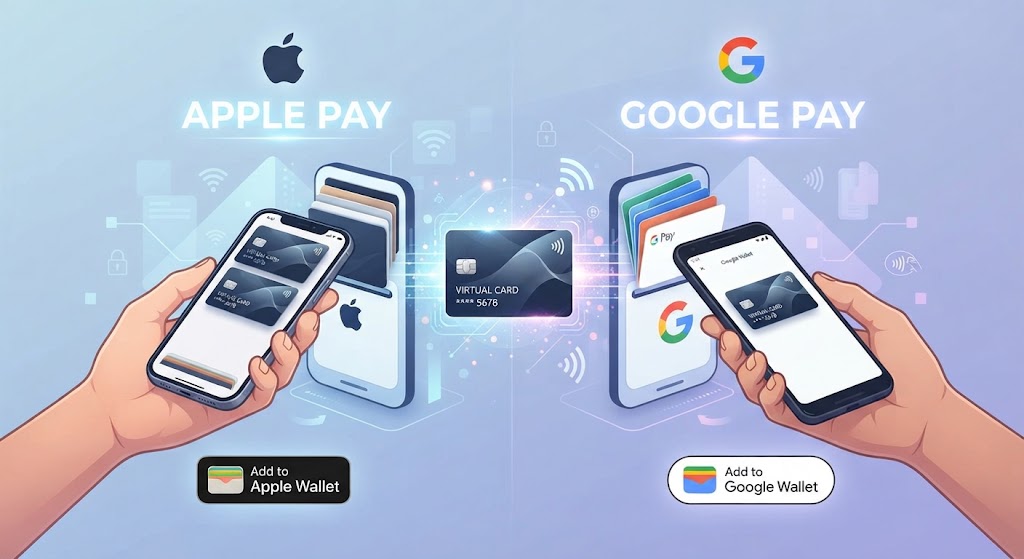
How to Add Your Virtual Card to Apple Pay / Google Pay
Once you have a YangaPlug virtual card, adding it to your phone's wallet means you can tap to pay in more places, without opening the app every time. Here's how to set it up, on either system.
Why Add Your Virtual Card to Your Wallet?
Tap-to-pay convenience at physical terminals that support it
No need to open the YangaPlug app for every transaction
One less card to dig for, your phone becomes the card
How to Add Your YangaPlug Virtual Card to Apple Pay
Open the Wallet app on your iPhone
Tap the + icon in the top corner
Select Add Card
Choose Debit or Credit Card
Enter your YangaPlug virtual card details manually, or scan the card if prompted
Follow the verification steps to confirm the card is yours
Once verified, your card appears in Wallet and is ready to use
How to Add Your YangaPlug Virtual Card to Google Pay
Open the Google Wallet app on your Android device
Tap Add to Wallet
Select Payment card
Enter your YangaPlug virtual card number and details, or scan the card
Complete the verification step
Your card is now added and ready for tap-to-pay where supported
Troubleshooting: What If It Doesn't Work?
Card not accepted for wallet add: Some virtual cards aren't yet supported for wallet linking in every region, check the YangaPlug app for current support status.
Verification fails: Make sure the card is active in the app first before attempting to add it to Wallet or Google Pay.
Still stuck: Reach out to YangaPlug support in-app, this is usually a quick fix, not a dead end.
Virtual Card FAQs
Can I use a virtual card without a physical card? Yes. Your virtual card works completely independently, you don't need a physical card to activate or use it.
Does a virtual card expire? Like any card, it carries an expiry date, but your YangaPlug virtual card can be renewed or reissued directly in the app when needed, no branch visit, no downtime.
Can I use my virtual card for international purchases only, or also locally? It depends on which card you're using, YangaPlug offers both a naira virtual card and a dollar virtual card. The naira card is built for local spending, while the dollar card is what you'd use for international purchases and platforms priced in dollars. Pick based on where you're spending, not a single card for everything.
Is my virtual card linked to my main account balance? No, your virtual card draws from its own linked balance, separate from your main wallet. That separation is intentional: it limits exposure if the card details are ever compromised.
Can I get more than one virtual card? Depending on your account setup, you can create multiple virtual cards, useful for keeping business spending, subscriptions, and personal purchases separate.
What happens if my virtual card details are stolen? Freeze it instantly from the app, then request a reissue. Your main balance stays protected since the virtual card is a separate, contained layer.
Does the virtual card work with PayPal? Most YangaPlug virtual cards work with major platforms that accept international cards, check the app for the current list of supported merchants and platforms.